Import flow traces via Azure Logic App workflows
Invictus is fully supported to import flows from Azure Logic Apps. It allows to keep track of the execution tree of the ran workflows, plus with tracked properties you can trace specific data for your needs besides the general diagnostic settings.
Workflow operations via Dashboard Requires Operator
Requires the x-iv-parent-workflow-run-id to be set on the workflows to run properly.
Flows linked to Azure Logic Apps workflows can be resubmitted and resumed via the Dashboard both separately (via the flow actions button) and in batch (via selecting multiple flows).
- Resubmit
- Resume
- Ignore
- Custom
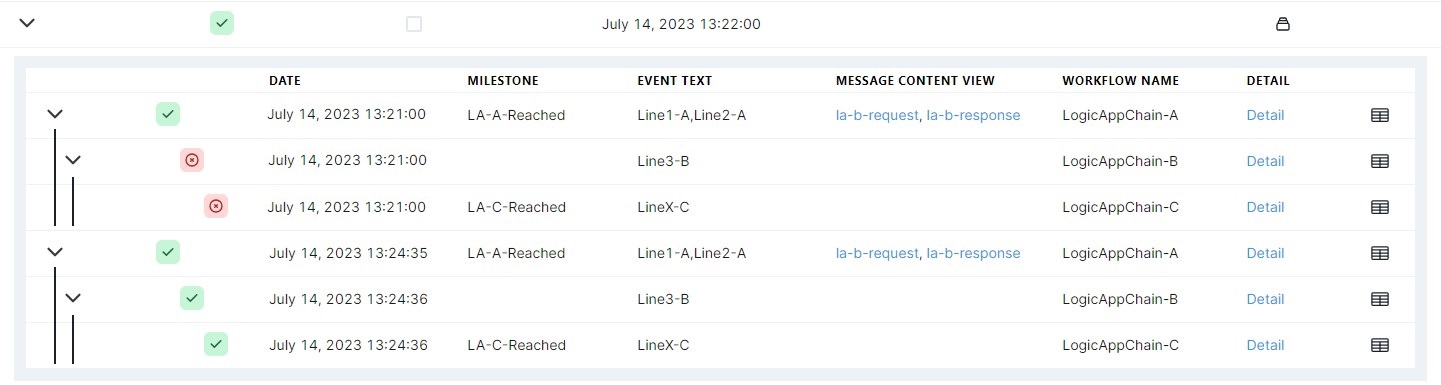
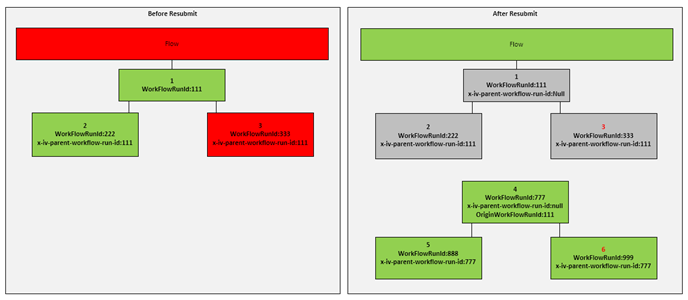
The resubmit functionality will always trigger an "Azure Resubmit" for the first Azure Logic App in the chain. Resubmit will trigger the execution of any corresponding flow, even completed ones. During resubmit, the first Logic App in the chain (execution tree) resubmits on Azure thus retriggering the whole flow.

Take the above image as an example. If the user resubmit this flow via the Dashboard, "LogicAppChain-A" resubmits on Azure. The below image is the outcome after "LogicAppChain-A" is re-executed through the resubmit.
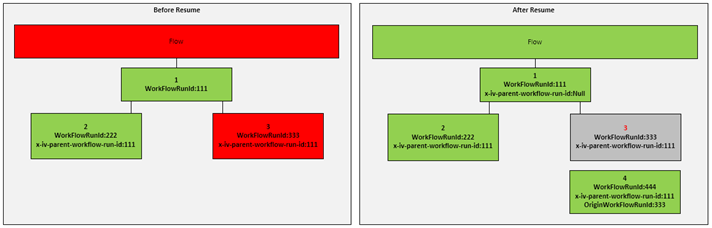
The resume function executes an "Azure Resubmit" for each failed function in the chain. Resume only works on messages with the status Failed. Also, the resume doesn't start from the first logic app within its flow, as with the resubmit, but instead executes only the failed logic apps.
☝️ The only exception is that if a Parent Logic App of a failed Logic App has also failed. Then only the Parent executes.
Users can choose to ignore a message, normally this could be the case when a message is in failed status. The user can select one or many messages and choose to "Ignore" them.
When a user sets a message to ignore, its status will change and show as follows

You can resume/resubmit flows via a custom interaction HTTP endpoint instead of the default Azure management URL. This will resume/resubmit the Azure Logic App workflow mapped to the flow (via DSAV and Workflow name properties).
Configure flow for custom resume/resubmit
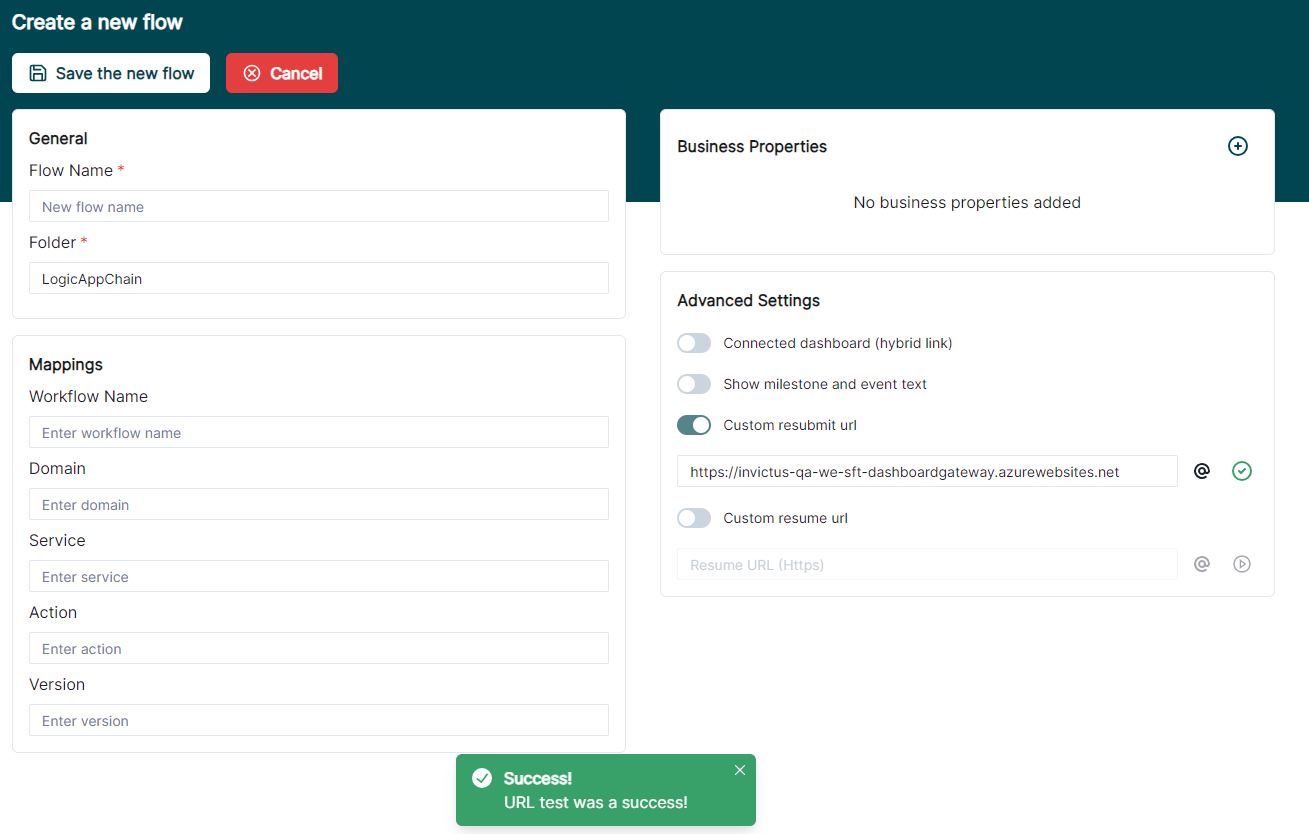
Navigate to the Advanced Settings section of the flow page. To enable custom resume and resubmit for a flow, toggle the switches of Custom resubmit URL and Custom resume URL respectively. Enter a HTTPS URL in one of the fields to set a resubmit/resume URL. The (▷) button will test the URL to see if it's reachable.
A message will pop-up to show if the test was successful.
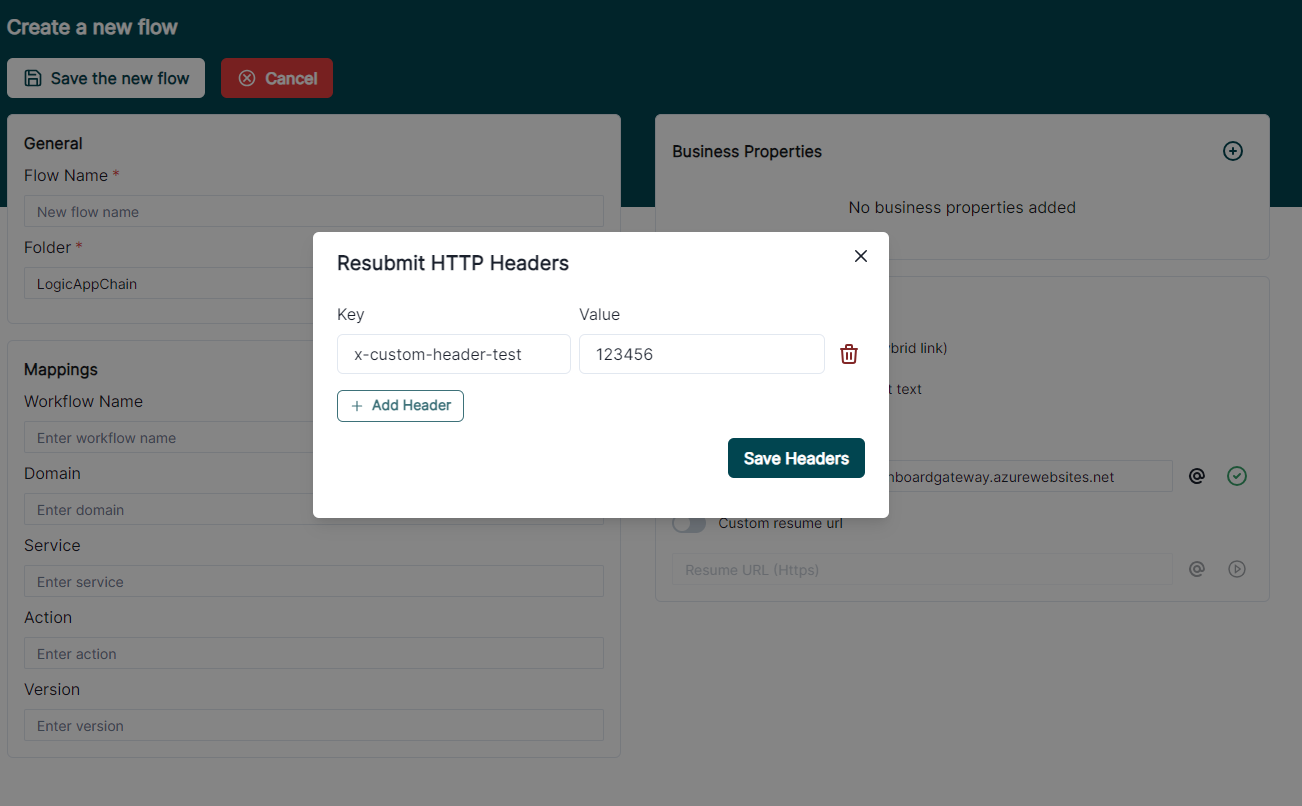
You may need to use custom HTTP headers when making the custom resubmit/resume request. To edit the HTTP headers, click the (@) button to open the HTTP headers dialog box where you can add custom HTTP headers.
Resume/Resubmit a flow
Once configured, navigate to the search flow traces page by selecting the flow in the sidebar you just adapted for custom resume/resubmit. You can only resume/resubmit flows based on available flow traces.
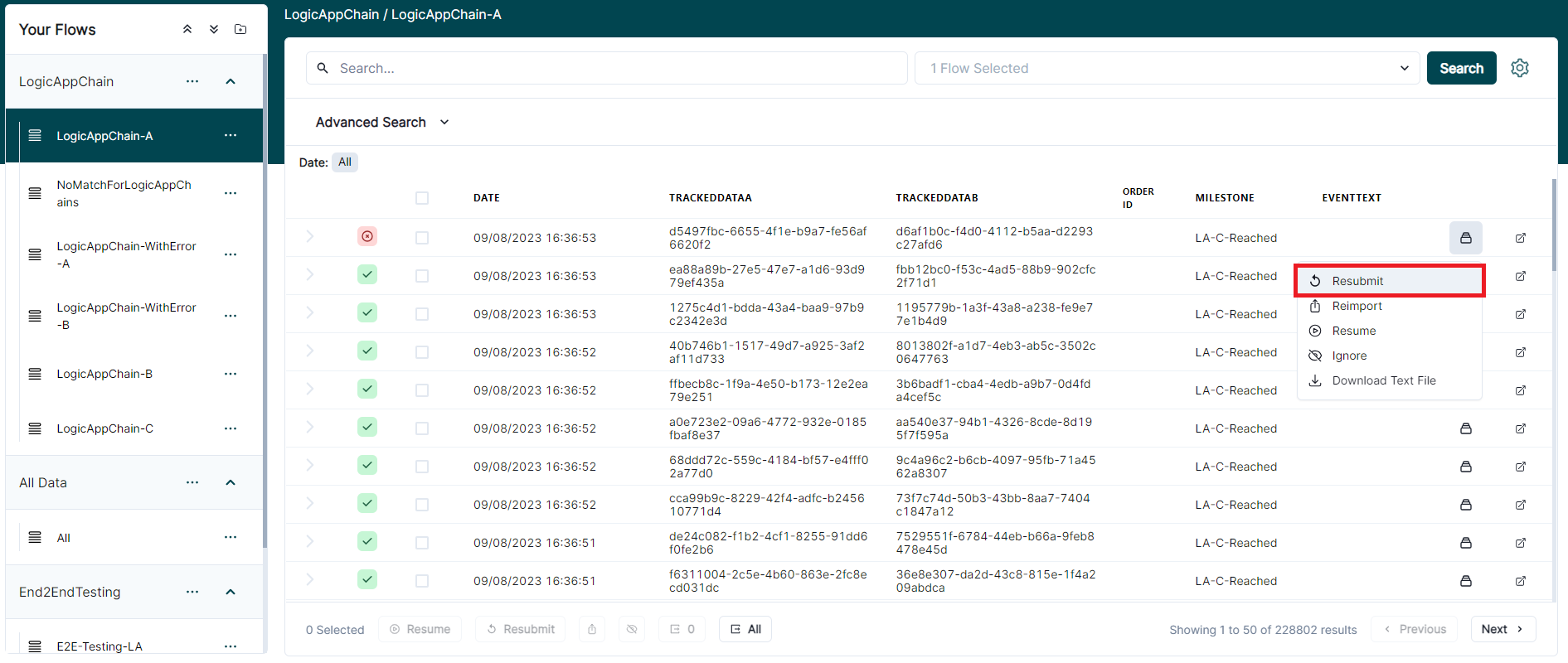
The Dashboard will sent a HTTP POST request to the configured custom resubmit URL, with a body containing information about the flow run.Full JSON request body example
Example scenarios
Scenario One: resubmit first in the chain
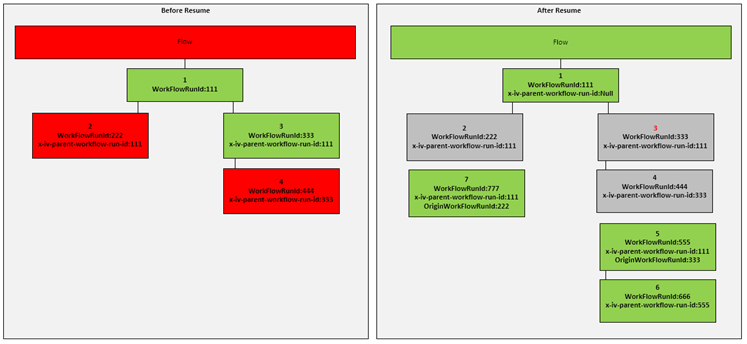
In this scenario, Logic App 1 resubmits. Since the Azure Logic App is the first one in the chain, which you can identify by the null x-iv-parent-workflow-run-id, this scenario will act as a Resubmit. As soon as Invictus receives the events for 4, 5 and 6, it will link 4 with 1 through the OriginWorkFlowRunId which the LogicAppRuntime supplies and ignore all descendants of 1.
Scenario Two: resume further down the chain
In this scenario, the resubmitted logic app Is number 3. Since this isn't the first Azure Logic App in the Chain, this acts as a Resume. As soon as Invictus receives the events for number 4, it can immediately link it to number 1 since it will still have the same x-iv-parent-workflow-run-id. Through the OriginWorkFlowRunId of 333 Azure Logic App 4 is then treated as a resubmit of 3. Resume operations only ignore the resubmitted Azure Logic Apps and its descendants, not the whole chain.
Scenario Three: resubmit further down the chain
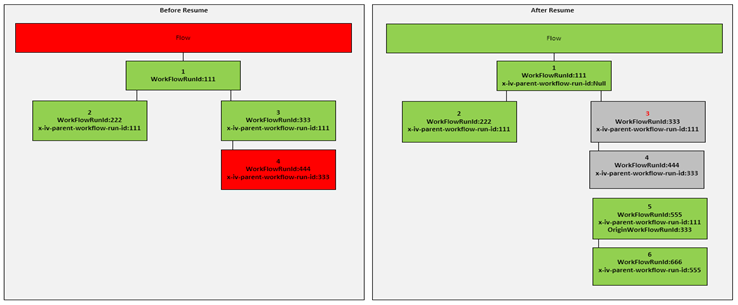
This scenario looks like scenario two. In this case the developer decided to resubmit Azure Logic App 3. You can only achieve this through the Azure Portal as the Invictus Dashboard will only resubmit failed Azure Logic Apps.
Scenario Four: resubmit many further down the chain
In this scenario the developer resubmitted Azure Logic App 2 and Azure Logic App 3.